Tag Archives: Microsoft

Microsoft Windows Vista – SP1 or SP2 and Microsoft Windows Server 2008 – SP1 or SP2 – How to Easily Free Up Some Disk Space

Have you started to notice that C drive is getting a little full or do you just want to have a spring clean, well you may not realise it but when you installed Service Pack 1 or Service Pack 2 onto your Windows Vista or Windows 2008 Server that Microsoft very sensibly backed up all the old system file before replacing them with new ones.

Assuming that you have had Service Pack 1 or Service Pack 2 installed for sometime without issue it may be good to know that you might be able to reclaim some disk space by dumping these obsolete system files.

Simply launch an elevated Command Prompt by right clicking “Command Prompt” and selecting “Run as administrator”.  Once you are in a command prompt simply paste in the following according to the Service Pack you are currently running:

Service Pack 1 you need to paste: VSP1CLN.EXE

Service Pack 2 you need to paste: Compcln.exe

Be patient with these commands they will need time to enumerate a large number of files and could take up to 60 minutes to complete.  Once finished I would recommend a reboot.

With these commands we are telling the operating system to remove any of the superseded service pack files.  If you do not have any files to remove it might be because someone else has already removed them or your computer/server may have already come with Service Pack 1 or Service Pack 2 pre-installed/integrated.
Microsoft Windows 7 – Service Pack 1 and Microsoft Windows Server 2008 R2 Service Pack 1 – How to Easily Free Up Some Disk Space

Have you started to notice that C drive is getting a little full or do you just want to have a spring clean, well you may not realise it but when you installed Service Pack 1 onto your lovely Windows 7 machine or Windows 2008 R2 Server that Microsoft very sensibly backed up all the old system file before replacing them with new ones.

Assuming that you have had Service Pack 1 installed for sometime without issue it may be good to know that you might be able to reclaim some disk space by dumping these obsolete system files.

Simply launch an elevated Command Prompt by right clicking “Command Prompt” and selecting “Run as administrator”.  Once you are in a command prompt simply paste in the following:

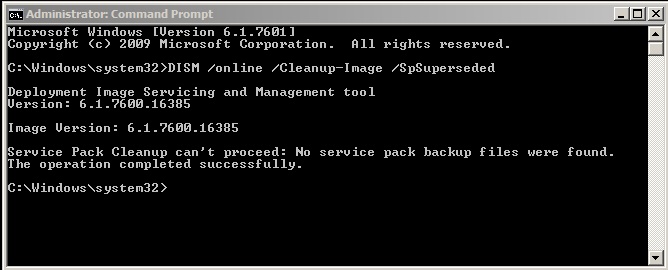
DISM /online /Cleanup-Image /SpSuperseded

Be patient with this command as it will need to enumerate a large number of files and could take up to 60 minutes to complete.  Once finished I would recommend a reboot.

Windows 7 and Server 2008 R2 all use an imaging environment to install so with this command we are launching Deployment Image Servicing and Management (DISM) and then telling it to remove any of the superseded service pack files.  If you do not have any files to remove, might be because someone else has already removed them or your computer/server may have already come with Service Pack 1 pre-installed/integrated.  In this instance you will get a message like the one below, you will also get this if you try to run the command a second time after all the old files have already been removed.

Powershell Script to Determine Active User Count for Microsoft Exchange 2010 and Exchange 2007

A script that I came up with to determine the user load that is being placed on a particular Exchange server so that you can plot the days of the week and times of the day that are busiest. This Powershell Script can be used with GFI Max Remote Management or SpiceWorks to easily identify busy Exchange servers.

$GETMSEXCHISAUC = Get-Counter ‘\MSExchangeIS\Active User Count’
$MSEXCHISAUC = $GETMSEXCHISAUC.CounterSamples |Select-Object CookedValue
Write-Host You have $MSEXCHISAUC.CookedValue Active Exchange User Connection\s to the Exchange Server

Feel free to edit the text part of the output (Last line), this could be simplified if required.

Automate the Microsoft Windows SBS 2011 Server Solutions Best Practices Scan

To be able to use the script you will need to have installed the Microsoft Baseline Configuration Analyzer 2.0 (MBCA) http://www.microsoft.com/download/en/details.aspx?displaylang=en&id=16475 and the Windows Server Solutions Best Practices Analyzer 1.0 http://www.microsoft.com/download/en/details.aspx?id=15556 (Update to version 1.1 via Microsoft Update after manually installing 1.0)

Now that we have all the pre-requisites installed we can focus on the Powershell Script that allows us to automate the scanning process.  The script below will initilise the MBCA and then carry out a Best Practices scan based upon the Server Solutions BPA, this can either be used as a standard powershell script where required or setup to run on a schedule with GFI Max Remotemanagement or SpiceWorks.


Import-module BaselineConfigurationAnalyzer

Get-MBCAModel

Invoke-MBCAModel -ModelId WSSGBPA


This should return a “Success: True” if everything matches the Best Practices Analyser.