Category Archives: Windows Server 2008 R2

Powershell Script to Determine Active User Count for Microsoft Exchange 2010 and Exchange 2007

A script that I came up with to determine the user load that is being placed on a particular Exchange server so that you can plot the days of the week and times of the day that are busiest. This Powershell Script can be used with GFI Max Remote Management or SpiceWorks to easily identify busy Exchange servers.

$GETMSEXCHISAUC = Get-Counter ‘\MSExchangeIS\Active User Count’
$MSEXCHISAUC = $GETMSEXCHISAUC.CounterSamples |Select-Object CookedValue
Write-Host You have $MSEXCHISAUC.CookedValue Active Exchange User Connection\s to the Exchange Server

Feel free to edit the text part of the output (Last line), this could be simplified if required.

Powershell Script to Determine Number of Connections to your Microsoft Terminal Services Gateway

I’ve put together another script that might be useful for monitoring how busy your Terminal Services Gateway is at various times of the day.  This Powershell Script can be used with GFI Max Remote Management or SpiceWorks to easily identify busy servers.

$GETTSGWCC = Get-Counter ‘\Terminal Service Gateway\Current connections’
$TSGWCC = $GETTSGWCC.CounterSamples |Select-Object CookedValue
Write-Host You have $TSGWCC.CookedValue Current Connection\s to the Terminal Services Gateway

Feel free to edit the text part of the output (Last line), this could be reduced/simplified if required.

Windows Server 2008 R2 or Windows Small Business Server 2011 is slow to respond or may stop responding for 10-20 seconds

If your Server is running Windows Server 2008 R2 Service Pack 1 or Windows Small Business Server 2011 Service Pack 1, you utilise RAID and have more than 4GB of memory then you are likely to be affected by this issue.  It seems to impact those servers running memory hungry applications such as Microsoft Exchange, Microsoft SQL Server/Express and Microsoft SharePoint the most.  It can cause the server to operate slowly and/or stop responding for 10-20 seconds to requests.

This issue is related to a limitation in the memory allocation of the storport.sys driver, this file is part of the Microsoft operating system.

All is not lost as Microsoft do provide a solution/fix. The first step is to ensure that your current RAID Controller driver is upto date, the latest version can usually be found on the server manufacturers support site or if you are not sure which update/driver applies to your system then contact the manufacturers technical support by phone or e-mail.

Please note that for HP Smart Array controllers you should be using Driver version 6.28.0.64 (Released 18th Feb 2014) or later for this change to take effect (Enables customers to make use of Microsoft HotFix which enables 64-bit command addressing described by MS KB2468345).

Now that we have the latest RAID controller driver installed lets ensure that we have the latest version of storport.sys installed, the latest version for Windows Server 2008 R2 to date is available from Microsoft using the following link http://support.microsoft.com/kb/2528357 we need this newer version of Storport because the version included with Windows Server 2008 R2 and Windows Server 2008 R2 – Service Pack 1 does not correct the memory allocation limitation.  Once the storport.sys hotfix (KB 2528357) is installed on your server you can proceed to the final step of resolving the overall issue.

The final step is to create a registry entry under the RAID miniport driver to allow it to address more than 4GB Memory via the storport.sys driver that we have updated.

We need to add a registry key so lets open Registry Editor by either typing regedit in the Start Search box or the Run Command and then pressing “Enter”

You will need to browse and locate this registry key: HKEY_LOCAL_MACHINE\SYSTEM\CurrentControlSet\services\<MINIPORT>\Parameters

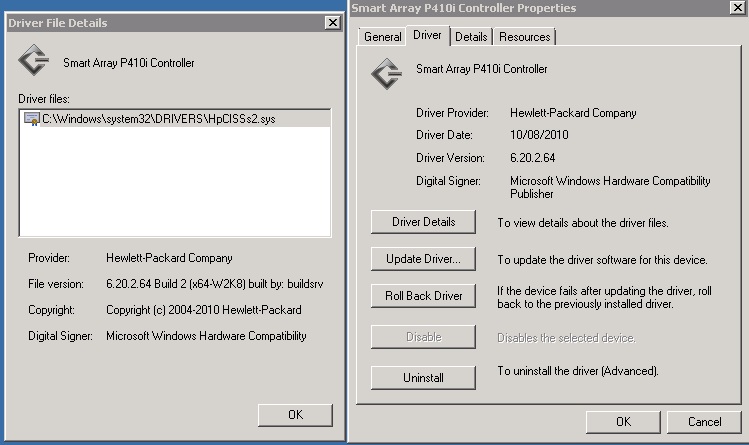
In place of <MINIPORT> in the example key above you need to enter the name of the Storport miniport driver that is in use on your particular server, i have attached a screenshot of where you can find this information, the example is based upon a HP Smart Array P410i Controller (HpCISSs2) but the principle is the same for most brands of server and RAID controller.

For the HP ProLiant server this Registry key would be: HKEY_LOCAL_MACHINE\SYSTEM\CurrentControlSet\services\HpCISSs2\Parameters

Once in the correct key click on the “Edit” menu, click “New”, and then click “DWORD Value”

Type Supports64BitAddressing, and then press “Enter”.

Right-click Supports64BitAddressing, and then click “Modify”

In the “Value data” box, type a value of 1

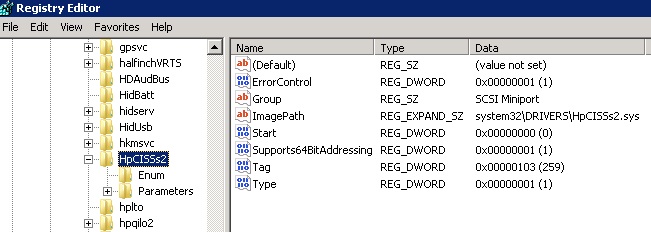
Your entry should look like the screenshot below

Close the Registry Editor and Restart your Server.

Now the RAID miniport driver that uses the Storport.sys driver can access more than 4 GB of physical memory and it should resolve your performance issue.
Microsoft SharePoint 2010 and Microsoft SharePoint Foundation 2010 – Running PSConfig to Update SharePoint Database after installing Service Packs and Hotfixes

If you read my last post you will already know how to check if Microsoft SharePoint 2010 and Microsoft SharePoint Foundation 2010 needs to have PSConfig run to complete the last step of patching SharePoint 2010.

You will need to open an elevated “Command Prompt”, this can be done by “right clicking” on the “Command Prompt” shortcut (Start Menu, Accessories) and then selecting “Run as administrator”.

Once in the command prompt you need to change to the directory containing PSCONFIG, you can do this by copying and pasting the line below in to the command prompt and then pressing “Enter”

cd C:\Program Files\Common Files\Microsoft Shared\Web Server Extensions\14\BIN

You should now find yourself in the correct directory and can copy and paste in the PSCONFIG command below into the “Command Prompt” window and hit “Enter”.

PSConfig.exe -cmd upgrade -inplace b2b -force -cmd applicationcontent -install -cmd installfeatures

This command will require around 5-10 minutes to complete, be patient and do not try to quit the command whilst it is running even if the percentage counter does not appear to be going up for a while.  Once it’s complete I would suggest rebooting the server to ensure the changes take effect.

Please note that this command will stop the SharePoint Site from working whilst the upgrade is running and is also likely to temporarily stop Terminal Services Gateway and some other IIS sites from being served up to users.

I would strongly suggest performing this task out of business hours or scheduling in a 60 minute slot during the day where users can logout of any server based applications, web sites or services.  I’d also not recommend trying to initialise the command whilst connected to the server using Remote Web Access/Workplace, this is only really applicable for SBS 2011 users.  Best to be physically infront of the server, use an IP KVM or establish a VPN connection and then RDP to the servers internal address or hostname using the “Microsoft Remote Desktop Client”.