Tag Archives: Windows

Windows 7, Server 2008 R2 and SBS 2011 RTM or SP1 – svchost.exe may hold a lock on a service and cause slow Windows startup

You may find that svchost.exe holds a lock on a service whilst all the service libraries are being loaded.  This in turn then prevents any other services in the same instance of svchost.exe from starting up until the call to the function has been returned.

An updated version of svchost.exe that will address the issue is available here http://support.microsoft.com/kb/2510636

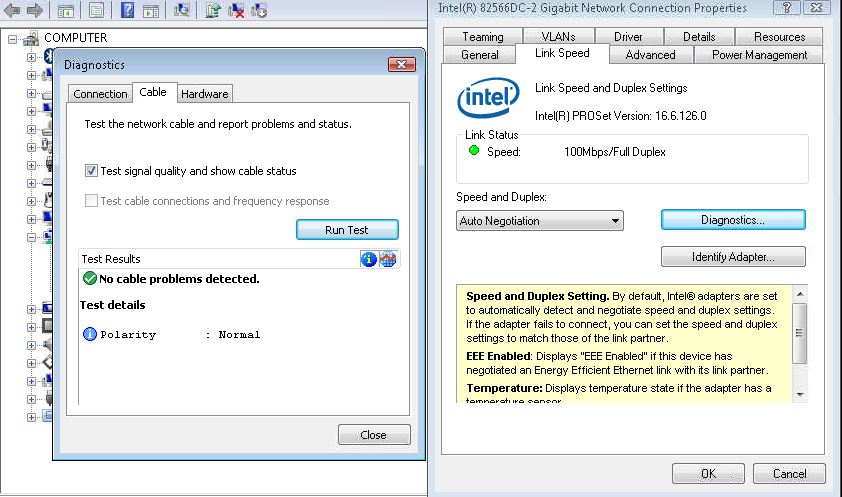
Intel Network Adapter Diagnostics May Wrongly Report that the Network Cable is over 100 Metres Long

When you run a Cable diagnostic using the Intel PROSet Network Adapter Diagnostics you may find that the utility incorrectly reports that your network cable is over 100 Metres and/or that the Cable is faulty/poor.

This issue can occur if you have a network switch that implements “power Saving” or “Green Ethernet” this feature is meant to reduce the power to a network port that is supporting a device with a short network cable run.

This “power saving” or “Green Ethernet” feature can cause the diagnostics to fail and can sometimes contribute to network drops and/or poor network throughput.  If you have a managed/smart switch then you can normally login via a browser and “Disable” this feature to correct the issue.

Windows Server 2008 R2 – RTM and SP1 may not respond to a request for a Sender Policy Framework (SPF) TXT Record Correctly if it exceeds 512 bytes

In this scenario if the Sender Policy Framework TXT record exceeds 512 bytes in size then you may find your server anti-spam fails to correctly identify e-mail as either legitimate mail or SPAM, this can result in the two extremes of SPAM mail being delivered to users or legitimate e-mail being rejected as SPAM.

Microsoft do offer a hotfix for DNS Server to prevent this issue KB 2495375 http://support.microsoft.com/kb/2495375

A Virtual Machine, Laptop or Computer running Windows XP is Slow to Startup and/or Applications take a long time to load

These two issues can occur for two different reasons, a corrupt file in the Windows Prefetch Folder or it could be that the Prefetch Folder is cluttered.

To resolve these issues you need to delete the contents of the C:\Windows\Prefetch folder and then restart your computer.

The Prefetch folder is just a cache of recently used application executables and will be recreated based upon the applications you use most frequently.  Over time the folder becomes cluttered with rarely used and prefetched applications hence the launch of applications becomes slower.

You may find following the clear down of the Prefetch folder and reboot that the first time you open each application it is still a little slow, ths is because Windows will automatically re-add the application on its first launch to the prefetch folder.  After your first use of the common applications everything should now be much faster and you should find startup times have been reduced.