How to automatically update your 3CX My Phone Status when DND is Enabled or Disabled on your Snom Handset

How to automatically update your 3CX My Phone Status when DND is Enabled or Disabled on your Snom Handset

Access your Snom phones management GUI using a web browser and login as required.  Once you are logged in select Preferences from the left hand menu.  Scroll down until you see DND: “On Code” and “Off Code”
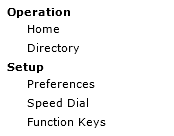
You will find these blank but can occupy them as follows

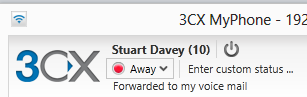
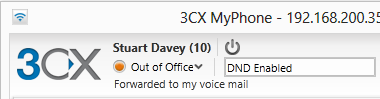
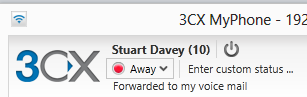
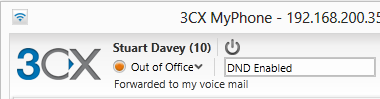
If you turn on DND on your Snom handset using the DND Key then the phone will send *31 to the 3CX Phone System and this will update your My Phone Extension Status to Away
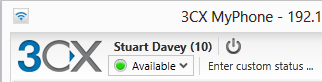
If you turn off DND on your Snom handset using the DND key then the phone will send *30 to the 3CX Phone System and this will update your My Phone Extension Status to Available
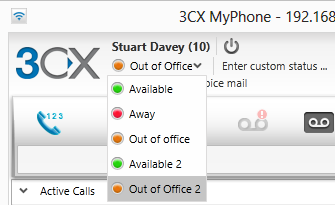
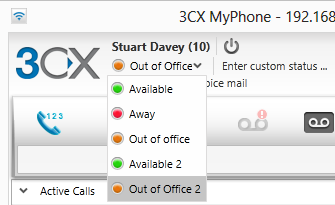
You could also use *34 instead of *31 which is called “Out of Office 2” (Custom Profile 2) you can then then enter custom status text next to this profile so that you and others know you have turned on DND rather than just setting your status as Away or Out of Office by changing your status manually in 3CX My Phone.
How to automatically update your 3CX My Phone Status when DND is Enabled or Disabled on your Yealink Handset

How to automatically update your 3CX My Phone Status when DND is Enabled or Disabled on your Yealink Handset

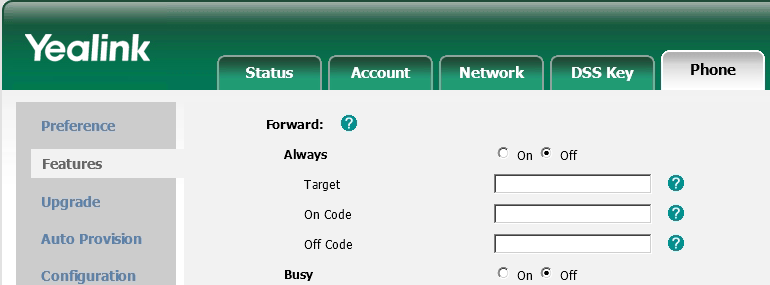
Access your Yealink phones management GUI using a web browser and login.  Once you are logged in click on Phone on the top menu bar and then select Features from the left hand menu.  Scroll down until you see “DND On Code” and “DND Off Code”

You will find these blank but can occupy them as follows

If you turn on DND on your Yealink handset using the DND Key then the phone will send *31 to the 3CX Phone System and this will update your My Phone Extension Status to Away

If you turn off DND on your Yealink handset using the DND key then the phone will send *30 to the 3CX Phone System and this will update your My Phone Extension Status to Available

You could also use *34 instead of *31 which is called “Out of Office 2” (Custom Profile 2) you can then then enter custom status text next to this profile so that you and others know you have turned on DND rather than just setting your status as Away or Out of Office by changing your status manually in 3CX My Phone.

 

How to install the Win32_Product WMI Class on Windows Server 2003 and Windows SBS 2003

How to install Win32_Product WMI Class on Windows Server 2003 and Windows SBS 2003

The Win32_Product class is not installed by default on Windows Server 2003. If you want to run a WMI script against a Windows 2003 machine you’ll need to do the following:

1.

In Add or Remove Programs, click Add/Remove Windows Components.

2.

In the Windows Components Wizard, select Management and Monitoring Tools and then click Details.

3.

In the Management and Monitoring Tools dialog box, select WMI Windows Installer Provider and then click OK.

4.

Click Next.

Please note that you will require Server 2003 or SBS 2003 – Disk 1 in the drive at the time of adding the component to your server.

This is known to impact the GFI Max Remote Management Asset Tracking feature when running on a Windows Server 2003 or Windows SBS 2003 server.  Software Versions may not be displayed for some products as GFI use a WMI query to the Win32_Product WMI Class which is not installed by default.

Iiscore.dll – Pre Service Pack 1 Revision History for Windows 8 RTM and Windows Server 2012 RTM

Iiscore.dll – Pre Service Pack 1 Revision History for Windows 8 RTM and Windows Server 2012 RTM

10-Oct-2012 – 8.0.9200.20533 – Iiscore.dll – x86/x64 – http://support.microsoft.com/kb/2763973 – FIX: “HTTP 403 (Forbidden)” when a client HTTPS request is sent to a Web application or a Web service in IIS 7.5 or IIS 8.0  and uses a self-signed certificate

10-Oct-2012 – 8.0.9200.16432 – Iiscore.dll – x86/x64 – http://support.microsoft.com/kb/2763973 – FIX: “HTTP 403 (Forbidden)” when a client HTTPS request is sent to a Web application or a Web service in IIS 7.5 or IIS 8.0  and uses a self-signed certificate

IT – Software and Hardware Support Resources