Category Archives: Service Pack 2

HTTP and HTTPS requests or traffic to a Windows Vista, Windows 7, Windows Server 2008, SBS 2008, Windows Server 2008 R2 or SBS 2011 machine may exhibit increased latency if the connection is through a network load balancer

If you utilise Microsoft Internet Information Services IIS or an application that uses the System.Net.HttpListener class is installed or running on one the operating systems below, and you have a Network Load Balancer then you may find that Increased latency occurs on HTTP and HTTPS requests and traffic.

This issue occurs because the HTTP and HTTPS requests from clients can include zero length data in the SSL records, certain server-side variables do not update correctly in this instance and Http.sys leaves the connection in the CLOSE_WAIT state.  This intern exhausts the open connection limit can introduce latency, timeouts and connection problems.

Affected Operating Systems:

Microsoft Windows Vista

Microsoft Windows 7

Microsoft Windows Server 2008

Microsoft Small Business Server 2008 – SBS 2008

Microsoft Windows Server 2008 R2

Microsoft Small Business Server 2011 – SBS 2011

The Microsoft Knowledge Base Article KB 2634328 includes further information on this issue and provides an updated version of Http.sys that corrects the issue http://support.microsoft.com/kb/2634328
Microsoft Windows Server 2008 and Microsoft Windows Server 2008 R2 DNS Server may stop responding to DNS queries and requests from client computers

Microsoft Windows Server 2008 and Microsoft Windows Server 2008 R2 DNS Server may stop responding to DNS queries and requests from client computers, this issue may occur randomly and when it is occuring the DNS Server stops responding.

This issue occurs because the DNS Server goes into an infinite loop, more information about this issue and a hotfix to address the issue is provided in Microsoft KB 2655960 http://support.microsoft.com/kb/2655960

Troubleshoot a Blue Screen of Death BSOD or Crash Dump on a Microsoft Windows Operating System

It’s probably the thing we all dread most, evereything has been working great for weeks/months/years and then suddenly your machine starts randomly crashing to a Blue Screen of Death or BSOD

All is not lost though as Windows will often generate its own crash dump a report of what happened to cause the crash, this is often invaluable when it comes to finding the cause and fixing it.

A company called Nirsoft offer a great little utility called Blue Screen View, you can download it from here ttp://www.nirsoft.net/utils/blue_screen_view.html

This program will automatically analyse the default Mini Dump and Crash Dump locations and then pull back a summary of the driver or system file that was most likley the cause of your crash.  In many cases it’s then just a simple case of removing the offending software, updating/downgrading the device driver or installing a software patch/hotfix.

CPU Usage may increase to 100% while you are scrolling through a Web page in Microsoft Internet Explorer 8 or Microsoft Internet Explorer 9

CPU Usage may increase to 100% while you are scrolling through a Web page in Microsoft Internet Explorer 8 or Microsoft Internet Explorer 9

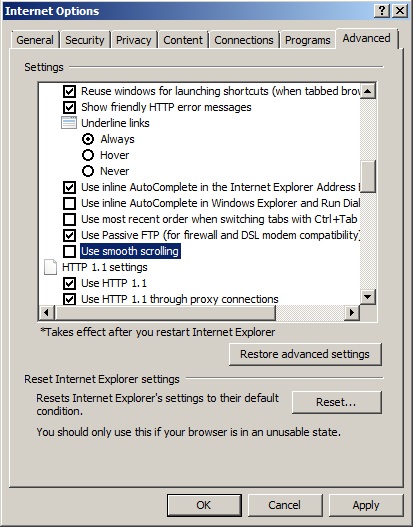
This can occur if the “Use smooth scrolling” option is enabled in “Internet Options” by default the “Use smooth scrolling” setting is enabled in Internet Explorer 8 and Internet Explorer 9.

To resolve the issue you just need to disable/untick the “Use smooth scrolling” option in Internet Explorer by following the steps below

  1. On the “Tools” menu in Internet Explorer, click “Internet Options” then click the “Advanced” tab
  2. Click to untick the “Use smooth scrolling” check box as shown in the screenshot below

The Microsoft knowledge base article KB 885355 http://support.microsoft.com/kb/885355