When using Microsoft Windows (various editions and versions) you may find that your Network Printer Unexpectedly Shows Offline. This can occur for a number of reasons and todays blog will try and help get you printing again.
First you should verify that you can ping the printer you are trying to print to, you can usually find the hostname or the IP address of the printer from the “Ports” tab of the printers “properties” page.
It should look something like this:
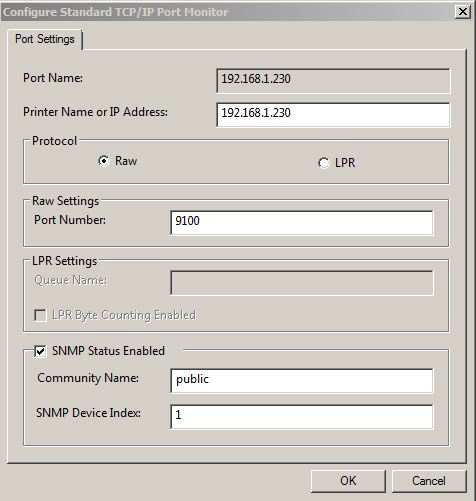
Printer Name or IP Address is where we can see which port the printer is trying to print to, we can then enter a “command prompt” by typing “cmd” into the “run” box and then type the ping command and the ip address or hostname of our printer. Example is “ping 192.168.1.230” or “ping hpinkjetprinter”
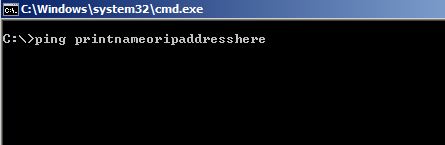 If we do not get a response from the address or hostname then it could indicate that the printer has been assigned a different IP address (DHCP) by the server or your Router. It could also indicate that the printer is turned off, the network cable is unplugged or damaged, if the printer is wireless it may be that the signal is no longer in range or that the wireless credentials it was setup with have been changed (WEP or WPA Key, SSID). Many Servers or Routers support reservations so that you can ensure your printer always gets the same ip address, alternatively you can find the hostname of your printer and set the printer port to the hostname, if the ip address changes the computer should then still be able to resolve the hostname to the current and valid ip address of the device.
If your printer is responding to a ping command but you still cannot print then it may be an issue with the configuration of the printers “Standard TCP/IP Port” you will several options on the port configuration page that can effect your ability to submit a print job to the network printer, it may also cause the printer to incorrectly report that it is offline.
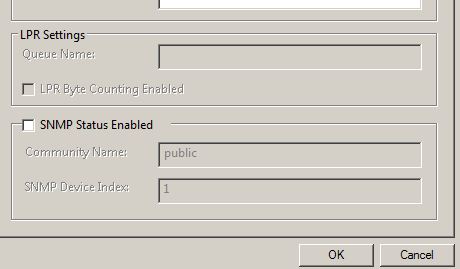 One particular issues that I have witnessed first hand is an HP OfficeJet Printer showing offline when the “SNMP Status Enabled” is ticked under the “Standard TCP/IP Port” printer port configuration tab. You may be able to ping the printer and access its web configuration but the printer will continue to show offline in Windows and print jobs will remian in the print queue. Once the “SNMP Status Enabled” is unchecked the printer will appear online again and print correctly.
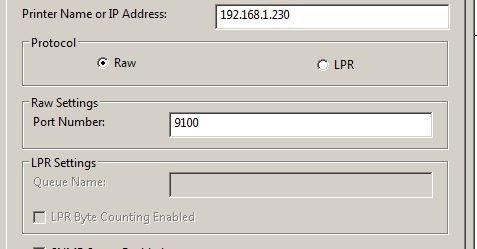
You amy also find that your printer only supports RAW or LPR mode, you can usually find further information on the “Protocol” that your printer supports via the technical manual or sometimes via the printers web configuration page.
Last but not least please remeber to check that you have the latest printer drivers from the manufacturers website, any firmware updates or software updates should also be installed to ensure the optimum performance and reliability of your product. It is also important to remember that you should ensure the printer you are accessing is compatbile with your operating system and that driver support is either providd natively within Windows or the manufcaturer supply drivers via their website.