Tag Archives: “Small Business Server 2011”

Automate the Microsoft Windows SBS 2011 Server Solutions Best Practices Scan

To be able to use the script you will need to have installed the Microsoft Baseline Configuration Analyzer 2.0 (MBCA) http://www.microsoft.com/download/en/details.aspx?displaylang=en&id=16475 and the Windows Server Solutions Best Practices Analyzer 1.0 http://www.microsoft.com/download/en/details.aspx?id=15556 (Update to version 1.1 via Microsoft Update after manually installing 1.0)

Now that we have all the pre-requisites installed we can focus on the Powershell Script that allows us to automate the scanning process.  The script below will initilise the MBCA and then carry out a Best Practices scan based upon the Server Solutions BPA, this can either be used as a standard powershell script where required or setup to run on a schedule with GFI Max Remotemanagement or SpiceWorks.


Import-module BaselineConfigurationAnalyzer

Get-MBCAModel

Invoke-MBCAModel -ModelId WSSGBPA


This should return a “Success: True” if everything matches the Best Practices Analyser.

[RESOLVED] – Microsoft Exchange 2010 – Appointments exceeding 24 hours changed to multiple day All Day Event on Mobile Phones/Devices

Microsoft Exchange 2010 Service Pack 1 ActiveSync does seem to have issues with Appointments exceeding 24 hours that are not all day events (i.e. Friday to Sunday).  I have personally seen this issue with the iPhone 4 and 3GS, both were upgraded to IOS5 which did not resolve the issue.  The latest update “Microsoft Exchange 2010 Service Pack 1 – Hotfix Rollup 6” also does not seem to resolve this problem.

You might wish to test if you have the issue with your ActiveSync enabled Smart Phone or Device, you should be able to replicate the issue by asking a collegue to send you a meeting invite that starts on Friday at 4pm and then finishes on Sunday at 2pm, Once you accept the invite you will find that it has been changed to several all day events (Fri, Sat and Sun) rather than an appointment between the specified time period.

After a long wait it appears that this issue is resolved in Rollup 1 for Exchange Server 2010 – Service Pack 2, you can obtain the Rollup using the link below:

http://www.microsoft.com/download/en/details.aspx?id=28809 – Update Rollup 1 for Exchange Server 2010 Service Pack 2 (KB2645995)

You can see the overall list of fixes/changes in Rollup 1 here:

http://support.microsoft.com/?kbid=2645995

The Fix we are most interested in is “A meeting item displays incorrectly as multiple all-day events when you synchronize a mobile device on an Exchange Server 2010 mailbox”

This was original raised in: http://support.microsoft.com/kb/2549255

You will need to ensure that you have updated your Microsoft Exchange 2010 Server to Service Pack 2 before you can install the Rollup so remember to factor extra time in for this.

You can obtain Microsoft Exchange Server 2010 – Service Pack 2 from here: http://www.microsoft.com/download/en/details.aspx?id=28190

Microsoft do seem to be aware of the issue and mention it in this Knowledgebase article

http://support.microsoft.com/kb/2563324 Current issues with Microsoft Exchange ActiveSync and Third Party Devices

Issue 1.6 – Appointment exceeding 24 hours changed to multiple day All Day Event
When an appointment item’s duration exceeds 24 hours, but is not marked as an All Day Event, Exchange ActiveSync changes the item on the device to become a multi-day All Day Event. The next time that the device synchronizes with the mailbox, the change is propagated from the item on the device to the item on the Exchange Server 2010 mailbox.

Solution
Microsoft is investigating this issue. This problem can occur when using any ActiveSync device synchronizing with Exchange Server 2010.

As you can see Microsoft do not currently have a solution to the problem and may well need to contact Apple and/or Google to produce a fix for both the iPhone and Android based handsets.

I would recommend contacting Microsoft Product Support and your mobile phone manufacturer if this issue is affecting you.  The more users that log the issue the higher priority it will be given and the quicker we can expect to see a fix emerge.

Windows Server 2008 R2 or Windows Small Business Server 2011 is slow to respond or may stop responding for 10-20 seconds

If your Server is running Windows Server 2008 R2 Service Pack 1 or Windows Small Business Server 2011 Service Pack 1, you utilise RAID and have more than 4GB of memory then you are likely to be affected by this issue.  It seems to impact those servers running memory hungry applications such as Microsoft Exchange, Microsoft SQL Server/Express and Microsoft SharePoint the most.  It can cause the server to operate slowly and/or stop responding for 10-20 seconds to requests.

This issue is related to a limitation in the memory allocation of the storport.sys driver, this file is part of the Microsoft operating system.

All is not lost as Microsoft do provide a solution/fix. The first step is to ensure that your current RAID Controller driver is upto date, the latest version can usually be found on the server manufacturers support site or if you are not sure which update/driver applies to your system then contact the manufacturers technical support by phone or e-mail.

Please note that for HP Smart Array controllers you should be using Driver version 6.28.0.64 (Released 18th Feb 2014) or later for this change to take effect (Enables customers to make use of Microsoft HotFix which enables 64-bit command addressing described by MS KB2468345).

Now that we have the latest RAID controller driver installed lets ensure that we have the latest version of storport.sys installed, the latest version for Windows Server 2008 R2 to date is available from Microsoft using the following link http://support.microsoft.com/kb/2528357 we need this newer version of Storport because the version included with Windows Server 2008 R2 and Windows Server 2008 R2 – Service Pack 1 does not correct the memory allocation limitation.  Once the storport.sys hotfix (KB 2528357) is installed on your server you can proceed to the final step of resolving the overall issue.

The final step is to create a registry entry under the RAID miniport driver to allow it to address more than 4GB Memory via the storport.sys driver that we have updated.

We need to add a registry key so lets open Registry Editor by either typing regedit in the Start Search box or the Run Command and then pressing “Enter”

You will need to browse and locate this registry key: HKEY_LOCAL_MACHINE\SYSTEM\CurrentControlSet\services\<MINIPORT>\Parameters

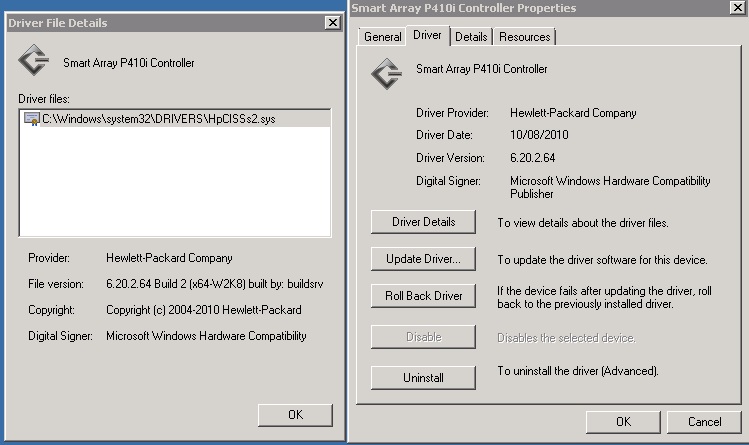
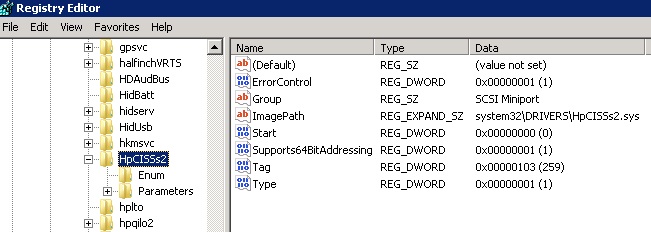
In place of <MINIPORT> in the example key above you need to enter the name of the Storport miniport driver that is in use on your particular server, i have attached a screenshot of where you can find this information, the example is based upon a HP Smart Array P410i Controller (HpCISSs2) but the principle is the same for most brands of server and RAID controller.

For the HP ProLiant server this Registry key would be: HKEY_LOCAL_MACHINE\SYSTEM\CurrentControlSet\services\HpCISSs2\Parameters

Once in the correct key click on the “Edit” menu, click “New”, and then click “DWORD Value”

Type Supports64BitAddressing, and then press “Enter”.

Right-click Supports64BitAddressing, and then click “Modify”

In the “Value data” box, type a value of 1

Your entry should look like the screenshot below

Close the Registry Editor and Restart your Server.

Now the RAID miniport driver that uses the Storport.sys driver can access more than 4 GB of physical memory and it should resolve your performance issue.

Fujitsu Primergy Servers – SNMP RAID and Server Health Checks

This next post is very useful for owners of Fujitsu or Fujitsu Siemens Primergy Servers, it highlights how you can monitor the status of your servers general Health and RAID Status.  To utilise these checks you will need to have the Windows SNMP Service installed and configured.  You will also need to download and install the Fujitsu ServerView RAID Manager and the Fujitsu ServerView Agent for Windows.

These OIDs can be used with your existing Server Monitoring Software such as GFI Max Remote Management or Spiceworks to provide upto the minute information.

Logical Drive Status (Array 1) = 1.3.6.1.4.1.231.2.49.1.6.2.1.10.1.1

1 = unknown, 2 = ok, 3 = degraded, 4 = offline, 5 = rebuilding, 6 = verifying, 7 = initializing, 8 = morphing, 9 = partially degraded

Logical Drive Status (Array 2) = 1.3.6.1.4.1.231.2.49.1.6.2.1.10.1.2

1 = unknown, 2 = ok, 3 = degraded, 4 = offline, 5 = rebuilding, 6 = verifying, 7 = initializing, 8 = morphing, 9 = partially degraded

If you have more than two Logical Drives (i.e. 4 x RAID 1 Sets) then simply substitute the last number of the above OID with 3 or 4, etc to reference the next Logical Drive

Number of Logical Drives = 1.3.6.1.4.1.231.2.49.1.6.1.0

1 = 1 Logical Drive, 2 = 2 Locagical Drives, 3 = 3 Locagical Drives, etc

Number of Physical Drives = 1.3.6.1.4.1.231.2.49.1.5.1.0

1 = 1 Physical Drive, 2 = 2 Physical Drives, 3 = 3 Physical Drives, etc

Power Supply Status = 1.3.6.1.4.1.231.2.10.2.2.5.11.1.1.2.0

1 = unknown, 2 = ok, 3 = degraded, 4 = critical

Temperature Sensor Ambient = 1.3.6.1.4.1.231.2.10.2.2.5.2.1.1.3.0.11

1 = unknown, 2 = sensor-disabled, 3 = ok, 4 = sensor-fail, 5 = warning-temp-warm, 6 = warning-temp-cold, 7 = critical-temp-warm, 8 = critical-temp-cold, 9 = damage-temp-warm

Temperature Sensor CPU (1) = 1.3.6.1.4.1.231.2.10.2.2.5.2.1.1.3.0.1

1 = unknown, 2 = sensor-disabled, 3 = ok, 4 = sensor-fail, 5 = warning-temp-warm, 6 = warning-temp-cold, 7 = critical-temp-warm, 8 = critical-temp-cold, 9 = damage-temp-warm

Temperature Sensor CPU (2) = 1.3.6.1.4.1.231.2.10.2.2.5.2.1.1.3.0.2

1 = unknown, 2 = sensor-disabled, 3 = ok, 4 = sensor-fail, 5 = warning-temp-warm, 6 = warning-temp-cold, 7 = critical-temp-warm, 8 = critical-temp-cold, 9 = damage-temp-warm

Please feel free to comment if you have any other useful OIDs or require further assistance